Clip visuals
Swapping a clip's picture, stills and GIFs, captions, and background removal.
A pad’s visual doesn’t have to be its own video. The audio and the picture are separable, which is what lets audio-only material appear on stage at all.
Give a clip a different face
Set a clip’s visual from the selected clip’s Canvas tab:
- A still image or animated GIF as the clip’s face.
- No visual at all — the pad plays and stays off screen.
- Swap: press Set, then play any video chop from any bank. Set mode stays active while you change banks, and you hear the original pad’s audio under each candidate’s video, so you’re auditioning the combination rather than guessing. A global banner keeps Done and Cancel reachable even when the original pad’s details scroll out of view. Press Done to keep the latest, or Escape to cancel.
A swap borrows only the chosen chop’s picture. The pad keeps its own audio, timing, effects, and trigger.
Captions
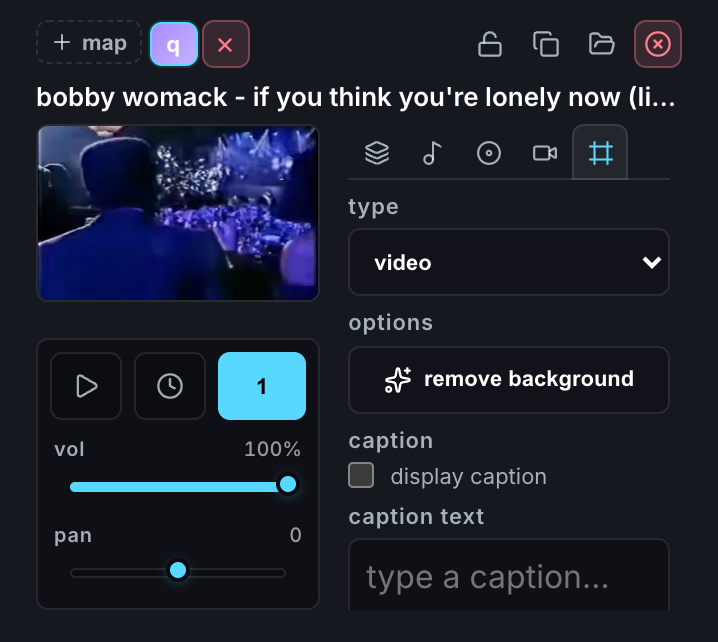
Captions are clip-owned: enable one and type its text in the same Canvas tab. The caption anchors inside the clip’s actual draw rectangle, so moving or scaling the clip moves and scales its caption with it.
Appearance — font, size, style, color — is a layered preference in Settings → Appearance, global with per-project overrides. Changing it updates the live canvas immediately; so does editing a caption on a clip that’s already playing. Enabled captions are baked into rendered sequences at the same clip-relative position.
Background removal
Background removal uses Apple’s on-device segmentation to cut the subject out of a prepared clip — a dancer with no room around them, composited over whatever else you’re playing. The inverse is available too: reconstruct the background with the subject gone.
For camera lanes there’s a faster route that skips rendering a separate clip first: the BG button on a camera lane in the capture editor removes that take’s background in place, local to the capture and reflected in both preview and final render.