The chop editor
Five tools, one editable timeline, and a preview of every cut before you commit.
Chopping is deciding where one thing ends and another begins. The app has four opinions about where those places are, and lets you overrule all of them. The tools propose; you dispose.
One timeline, four tools
All four marker tools write to the same set of markers on the same waveform. Chop by hits, drag two markers by hand, then apply beats to just the intro — it’s one document the whole time. Markers you’ve touched aren’t sacred to the tools, but there’s a freeze for that (below).
The tools sit in a compact palette beside the preview, leaving the full-width inspector for the active tool’s controls.
Hits
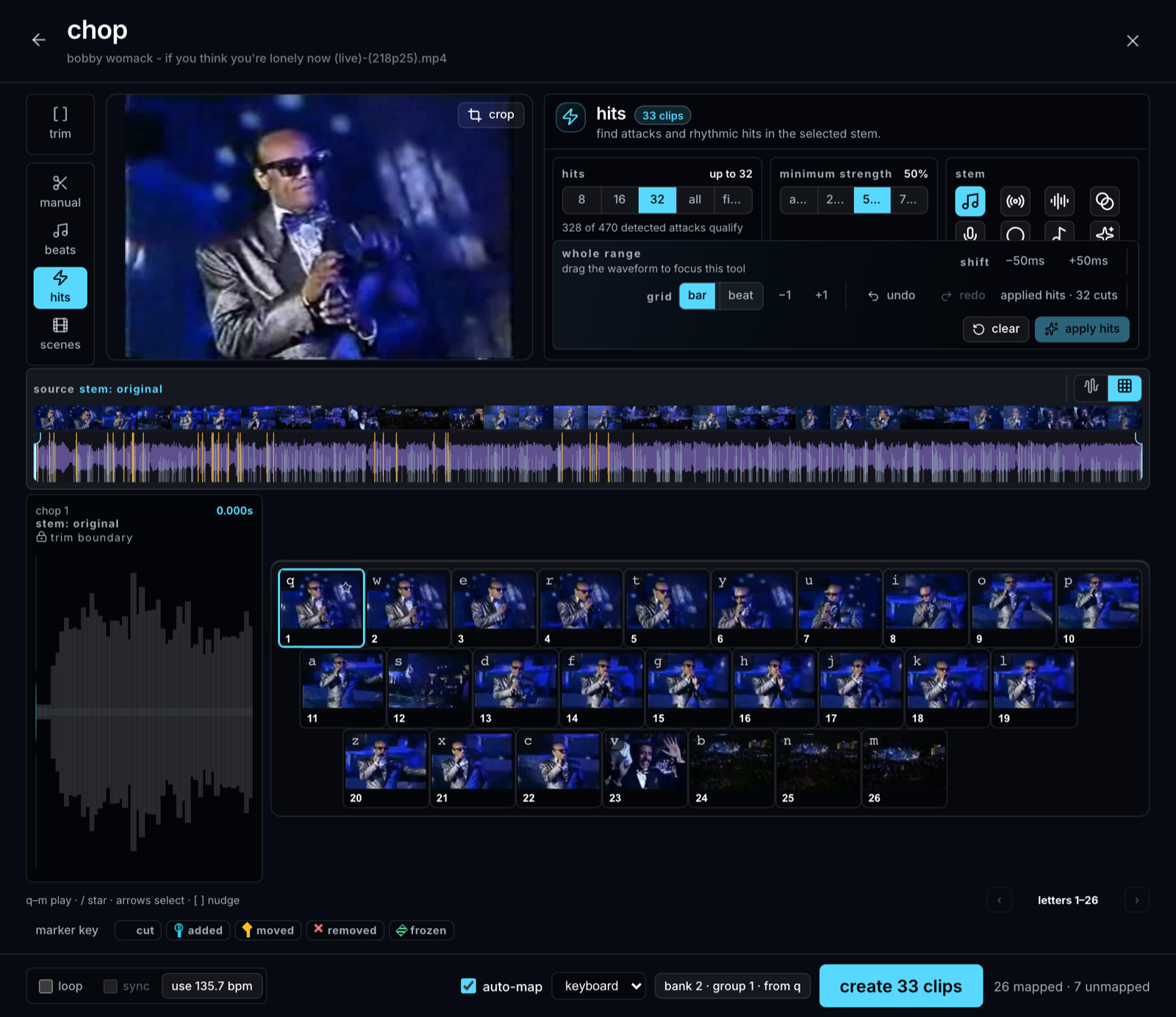
Finds every percussive onset in the audio, ranked by strength. You choose an upper limit — 8 / 16 / 32 / All / Fill bank — and a minimum strength. The default 50% floor stops secondary and noisy detections from padding a short loop out to the requested count, so four convincing hits produce four markers. Lower the floor when you want the quieter details. Detected-but- unused onsets show on the waveform as faint ticks.
This is the default tool and the right one most of the time: drums, rap vocals, dialogue, anything whose interesting boundaries are attacks.
Beats
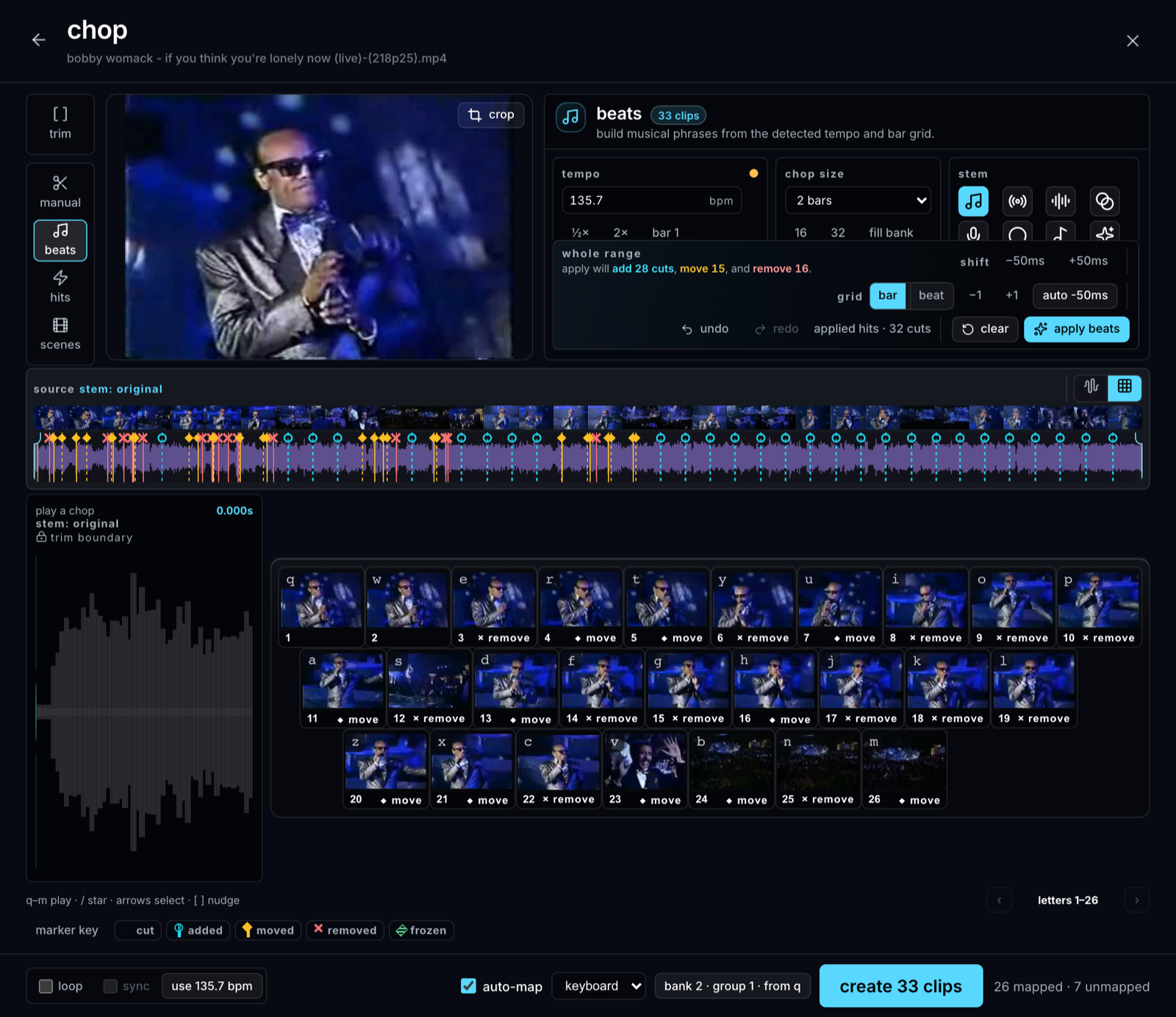
Chops on the musical grid — every beat, every bar, every two bars. The app detects tempo and downbeats. When it guesses the wrong octave (hearing 184 for a 92 BPM song), the ½x / 2x buttons fix it, and you can type a BPM or anchor bar 1 at the playhead yourself. Your correction persists with the source.
Use beats when you want even, loopable slices rather than hits — chopping a groove into bar-length loops, say.
Scenes
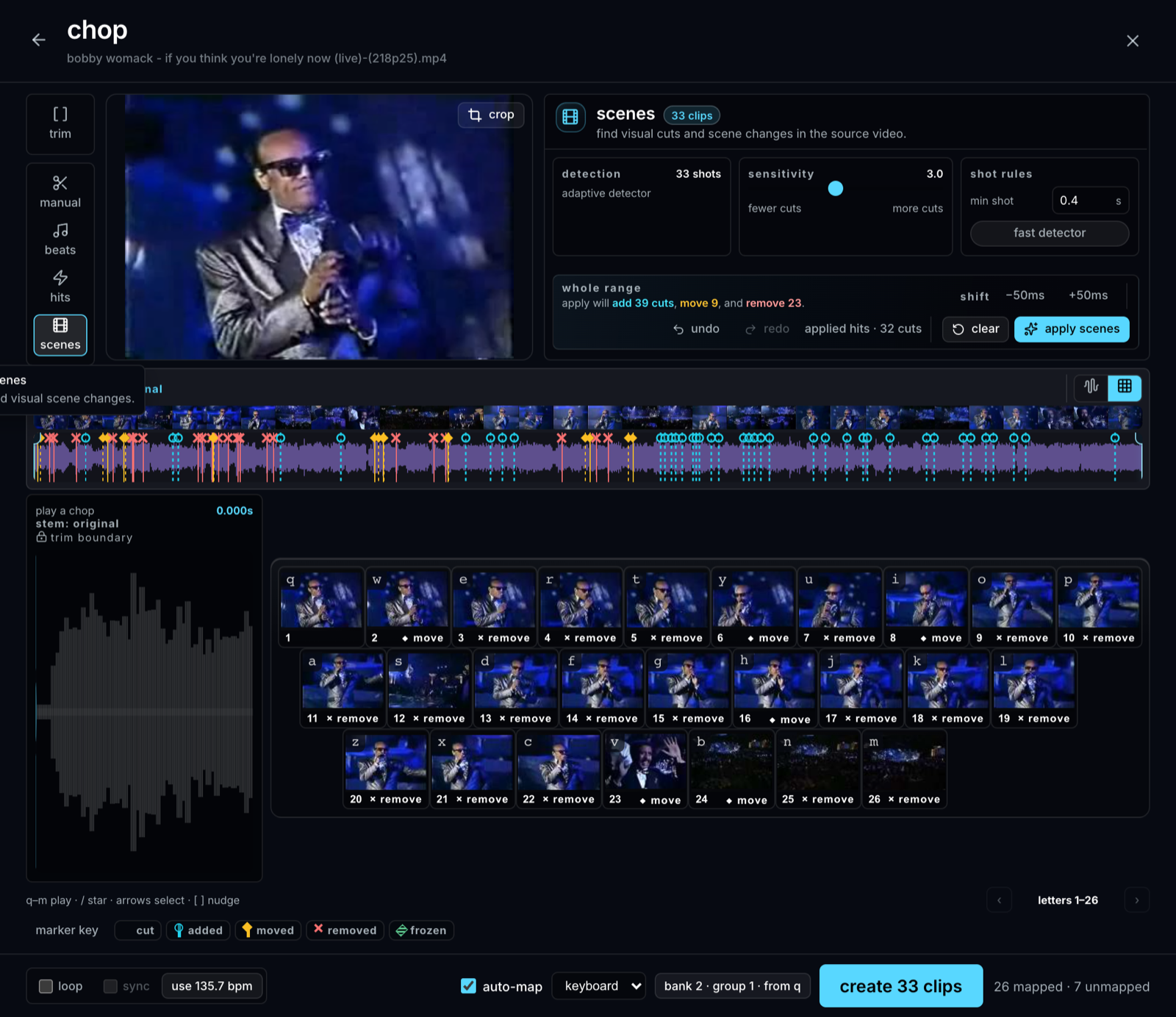
Chops the picture instead of the sound: scene detection finds the camera cuts. Chop a trailer by scenes and every pad is a different image.
Manual
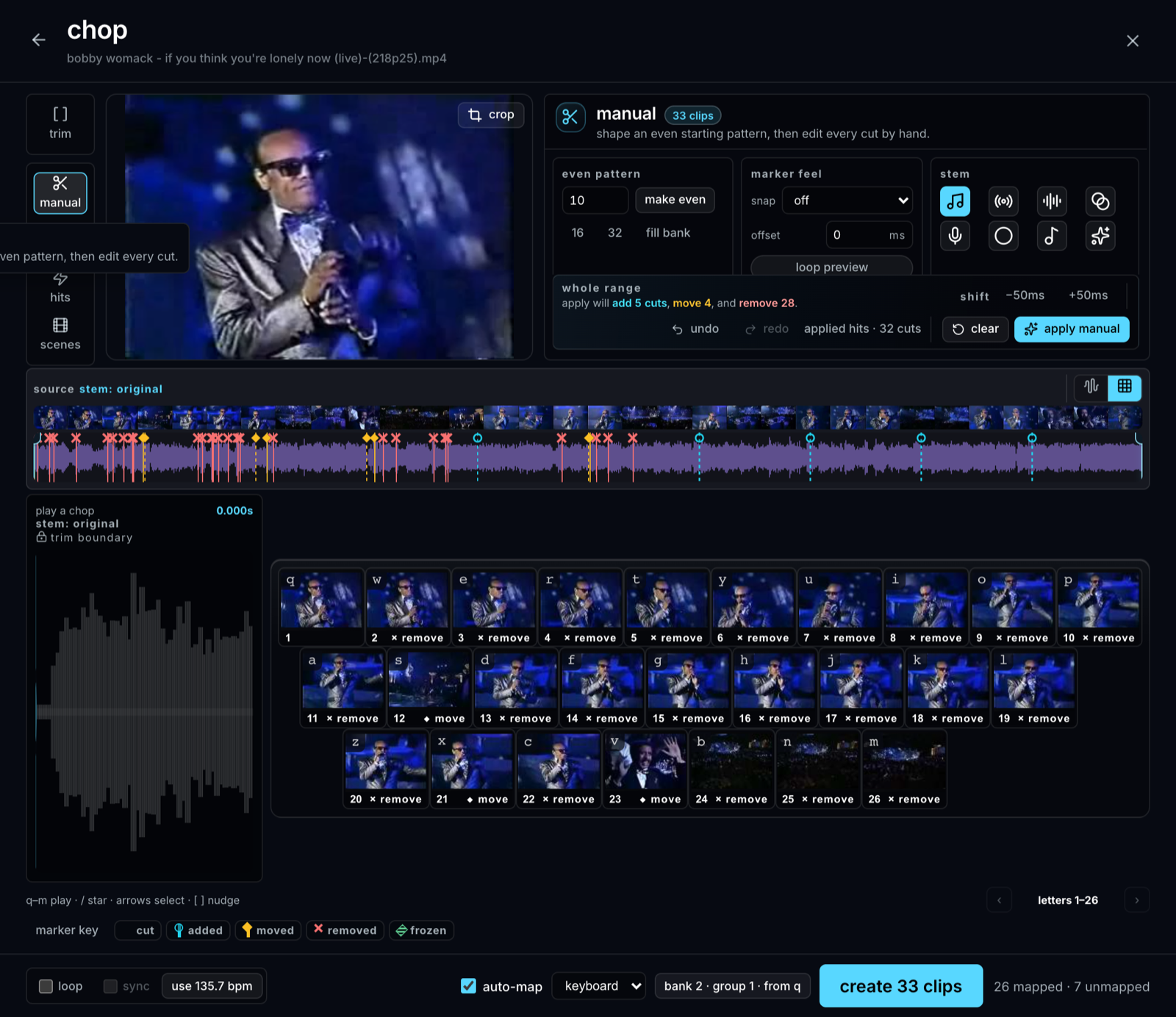
Starts from an evenly spaced number of slices and leaves the rest to you. Space plays; Shift+click adds a marker, Alt+click deletes one, and dragging moves one. Every other tool’s result is hand-editable the same way.
Trim
The fifth mode isn’t a marker tool. Trim sets the working range of a source, or moves the in/out points of an existing clip in place. Its ‹ › steppers walk each endpoint along a grid of hits, beats, or bars, so a boundary lands somewhere musical rather than wherever the pointer was.
The preview: see the cut before you make it
Change a tool’s parameters and nothing happens to your markers yet. Instead the waveform shows what Apply would do:
- cyan dashed with a hollow circle — a new cut that would appear
- amber dashed with a diamond — an existing cut that would slide (its old position dims)
- solid red with a cross — a cut that would disappear
- striped green diamond — a frozen cut the tool will preserve
The Marker key below the editor keeps this vocabulary at hand and can be collapsed once it’s familiar. Video Keyboard repeats pending changes in each chop’s status rail, so the meaning survives away from the waveform and doesn’t depend on color alone.
When the preview looks right, press Apply — or just press Enter, which is Apply in every tool — and the markers become exactly what you were shown. In Trim, which has no Apply, Enter saves the trim or creates the clip instead.
Two views of the same chops
The waveform and grid icons at the right edge of the source navigator switch between two views of the same pending chops.
Video Keyboard is the default, performance-oriented view: pending assignments laid onto their destination letters, so you can audition and star them directly. Waveform is the structural view for placing and shaping cuts. Selection, stars, playback, and the focused start editor stay synchronized across the switch.
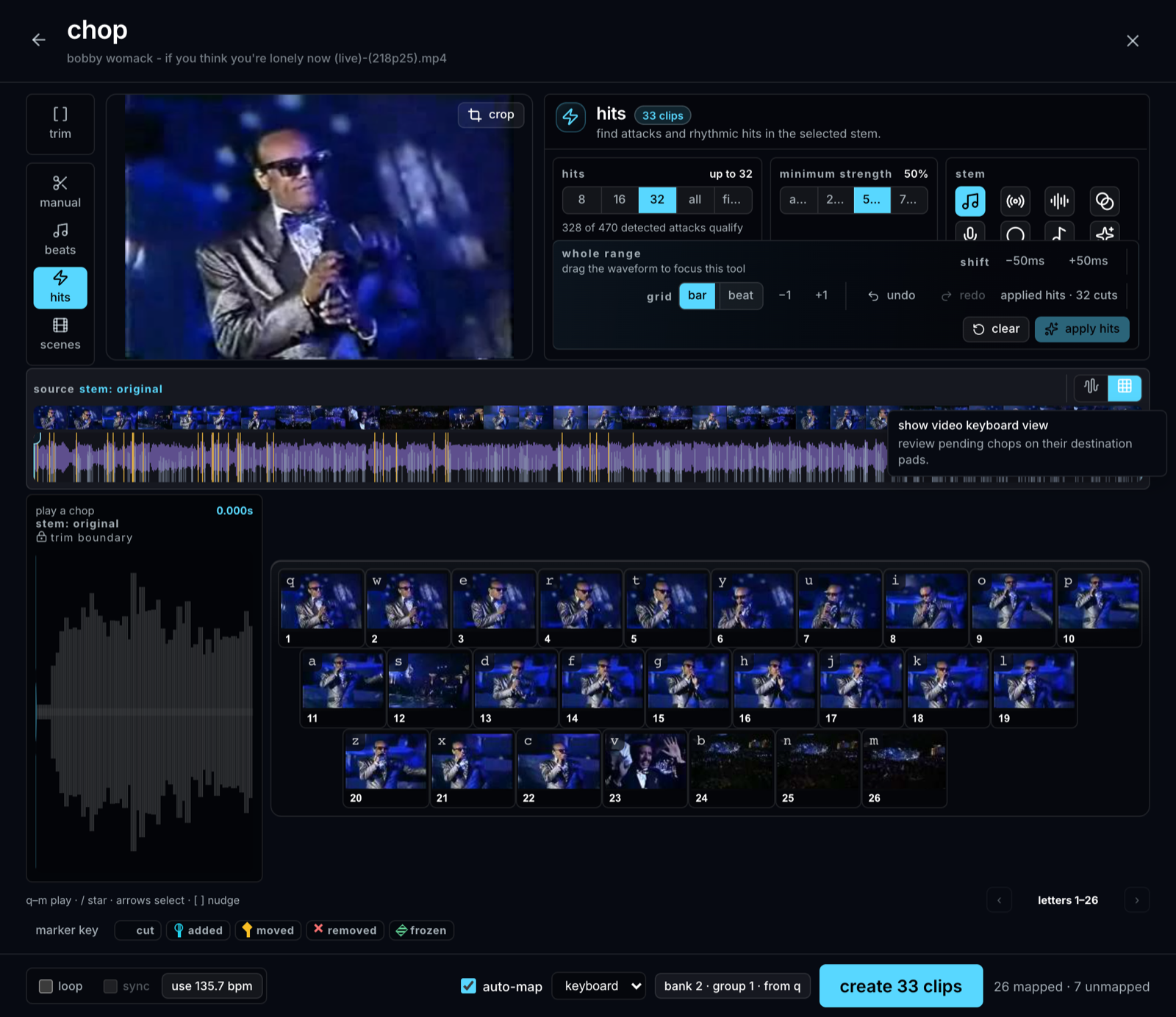
For a large candidate set, Draft deals chops onto a full QWERTY board and lets you keep or pass each one by playing it. See Draft mode.
Scope: whole range or selection
Apply doesn’t have to touch everything. Drag on the waveform to make a selection and the tool works inside it only: chop just the drum break by hits at 16 and leave your hand-cut intro alone. With a selection active, Hits ranks the strongest onsets within the selection — 8 hits means the 8 best in that window.
Freeze (⌘F) protects the markers in a selection from every tool until you unfreeze them. Freeze the chorus you’ve perfected, then experiment loudly everywhere else.
Chopping against a stem
The selected stem changes what you hear, what the waveform draws, and what Hits analyzes. It does not change the media stored in the new clips — chops stay backed by their original source.
That separation is what makes the useful move possible: vocals are legato, with smeared onsets and few clean transients, while drums are a grid of them. So chop a vocal against the drums & vocals stem, where the detector has something to grab, then swap the resulting clips to clean vocals afterwards. See Stems & analysis.
Where the slices land
The footer shows the destination — bank, group, starting pad — and expands into a pad map of the target bank, so you can see which pads are occupied and where the new slices will pour in. Skip-occupied is on by default: existing pads keep their clips and new slices flow around them.
Re-chopping
Any clip can go back in the chop editor. That loop you rendered from a jam session? Chop it into eight pieces. Chopping isn’t a stage of a pipeline — it’s a move available at any time, on anything.