Core concepts
Sources and clips, pads and banks, voices, mute groups, and the parity rule.
You can use the app for a long time without reading this page. But it makes a handful of quiet promises, and knowing them changes how you play.
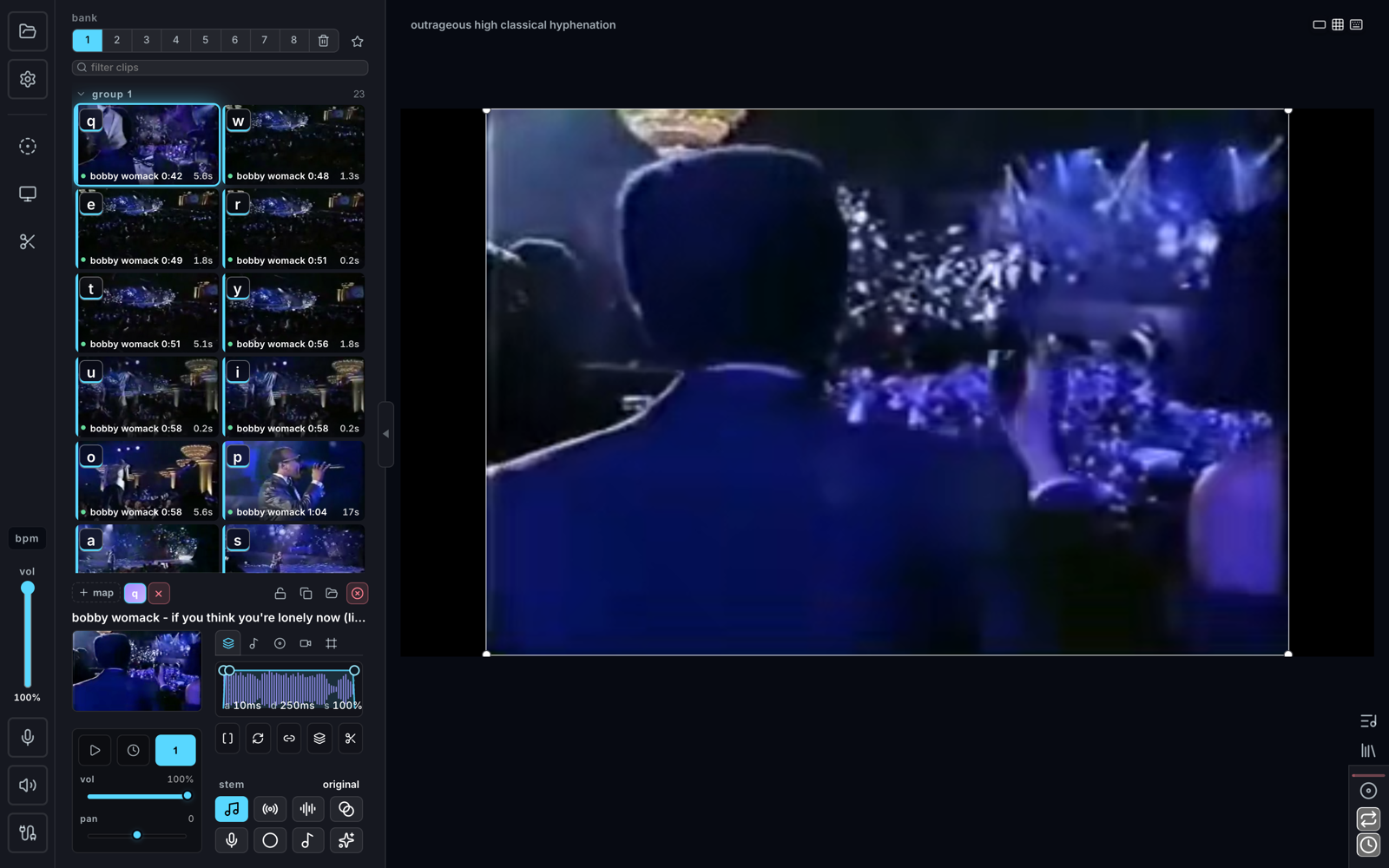
Sources and clips
A source is a whole video or audio file you brought in. A clip is a slice of one — a start time, an end time, and everything you’ve decided about how it should play: volume, envelope, speed, place on the canvas.
A clip remembers where it came from. Chop a clip out of a source and you can re-chop it later, swap its audio for the isolated vocal, or move its boundaries; the original frames are never thrown away. Cutting here is an opinion, not an amputation.
Pads and banks
The playing surface is a 40-pad grid, mapped to your keyboard’s four letter rows or to a MIDI controller. Each pad holds one clip plus its performance settings.
Pads come in banks — eight pages of 40, so 320 pads per project. A common shape: chopped verse on bank 1, chopped chorus on bank 2, your own recorded loops on bank 3. Bank 0 is the Trash, where deleted clips go and where you can retrieve them.
Voices and polyphony
Every pad press starts a voice: one playing instance of a clip, sound and picture together. Hold five pads and five voices play. That’s polyphony, and it applies to the video too — every visible voice is composited onto the canvas simultaneously.
Press the same pad again and its old voice is cut off by the new one (retrigger). A one-shot ends its voice on its own. A loop keeps its voice until you toggle it off.
Mute groups
Sometimes you don’t want polyphony. A bassline chopped across eight pads should be monophonic — each new note cutting the last, the way a finger sliding on a string can only be one place at a time.
That’s a mute group: pads in the same group choke each other when triggered. Try the difference:
Tap pads quickly. With the group on, each hit cuts the last — the monophonic feel you want for hi-hats, basslines, or one singer who shouldn’t harmonize with themselves. With it off, everything overlaps polyphonically.
Mute groups do a second job: they’re also the canvas’s layer system. Group 1 draws under group 2, which draws under group 3. The same decision that organizes your sound organizes your picture — see Canvas & visuals.
Sessions, Sections, and Songs
Three nested objects show up once you start capturing rather than just playing:
- A capture session is a saved recording of something you performed, with its lanes still editable. It lives in the project until you delete it. See Saved sessions.
- A Section is a named piece of song — Verse, Chorus — pointing at one finished looper session, or at a chop you dragged onto the board. Sections are frozen: editing one forks it first, so material you’re rehearsing can’t change underneath you.
- A Song is a board of Sections plus an optional Roadmap: an ordered plan with repeat counts. See The Song Board.
None of the three flattens into a clip until you ask it to.
What you see is what renders
Live playback, the preview output, and rendered files are the same performance. The canvas you watch while playing, the preview window you might feed to a projector, and the video file you export of a captured take are driven by the same clock, the same envelopes, the same layer order.
If it looked right when you played it, it renders right. There is no “…but in the export” here.